

Open a file
There are four ways in. They all show the file at once.
- Drag a .md file onto aster-md.exe, or run aster-md.exe notes.md from a terminal.
- Right-click a markdown file in Explorer and choose Open with, then Aster MD. The app accepts the path quoted or not, relative paths, and file: links.
- Run aster-md.exe on its own to see your recent files, then pick one or press Ctrl O to choose a file.
- Press Ctrl K or Ctrl P and pick a file from the recent files in the commands palette.
With a window already open, a second open goes to that window and the new launch exits at once. Double-click ten files in Explorer and you get one window, ending on the last of them, with all ten in its recent list. To get a separate window, add --new-instance.
aster-md.exe notes.md
aster-md.exe
aster-md.exe --new-instance notes.md
Recent files
The list on the left is the whole interface for finding a file.
- Pinned files come first, then the others. Use the star to pin a file.
- Ctrl \ shows or hides the list. Ctrl O opens a file from disk.
- The list is kept in your profile, one line per file. Delete it to forget them: %LOCALAPPDATA%\aster-md\recent.txt.
Edit the page
You edit the page the way it looks, as in a word processor. The markdown is written for you.
- Click into text and type. Select text and press Ctrl B, I or E for bold, italic or code, or Ctrl Shift X for strikethrough.
- At the start of a line, type "# " for a heading, "- " for a bullet, "1. " for a numbered item, "[] " for a task or "> " for a quote.
- Ctrl 1 to 6 set the heading level and Ctrl 0 returns to plain text. Ctrl Shift 8, 7 and 9 make a bullet, numbered or task list.
- Tab and Shift Tab indent and outdent a list item, and Alt Up and Alt Down move it. In a table they go to the next or previous cell.
- Shift Enter is a line break inside a paragraph. Enter on an empty list item ends the list.
- Ctrl click opens a link. Ctrl L edits the link or image at the caret.
- PNG, JPEG, GIF (the first frame), WebP, BMP and TIFF pictures show relative to the document.
Tables work like a small sheet: pick a cell, use the column menus for sort and filter, and copy or paste cells as tab-separated text to and from a spreadsheet.
Keys
Every key in one table.
| Keys | Action |
|---|---|
| Ctrl K or Ctrl P | Command palette: commands, headings and recent files |
| Ctrl O | Open a file |
| Ctrl \ | Show or hide the recent files |
| Ctrl F, then Enter or Shift Enter | Find; next or previous match |
| Ctrl S | Save (it also saves by itself a moment after you stop typing) |
| Ctrl B, I, E; Ctrl Shift X | Bold, italic, code; strikethrough |
| Ctrl 1 to 6, Ctrl 0 | Heading 1 to 6; plain paragraph |
| Ctrl Shift 8, 7, 9 | Bullet list, numbered list, task list |
| Tab, Shift Tab | Indent or outdent a list item; next or previous table cell |
| Alt Up, Alt Down | Move a list item |
| Shift Enter | Line break inside a paragraph |
| Ctrl Z, Ctrl Y | Undo, redo |
| Ctrl L | Edit the link or image at the caret |
| Ctrl click | Open a link |
| Ctrl + or -, Ctrl wheel | Zoom in or out |
| Shift wheel | Scroll a wide code block or table sideways |
| Ctrl Home, Ctrl End | Top or bottom of the document |
Find and the commands palette
Two overlays, both on the keyboard.
- Ctrl F opens find. Type to search; matches are marked in the page with a count such as "1 of 3". Enter goes to the next match and Shift Enter to the previous one.
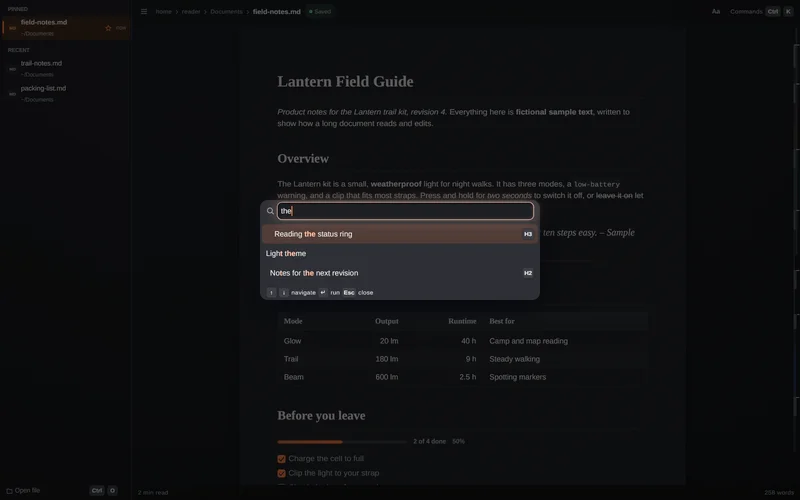
- Ctrl K or Ctrl P opens the commands palette. Type to narrow the list, use the arrow keys to move and Enter to run. Esc closes it.
- The palette lists commands such as Save, Open file, Find in document, Toggle recent files, Zoom, Go to top and Go to end, headings of the open document and your recent files.
- Look commands live there too: Light theme or Dark theme, Serif body text, Reduce motion, Turn autosave off, the paper stocks, the Post finishes and Typography.
Themes, type and paper
Change how the page looks without touching the file.
- Theme: light or dark. A saved choice wins; otherwise Aster MD follows the system. The Light theme or Dark theme command switches it. The --theme dark or --theme light flag picks one for a single run.
- Typography: click Aa at the top right. Six pairings (Modern, Classic, Editorial, Book, Report, Humanist), four text sizes (S, M, L, XL) and three measures, the width of the column (Narrow, Normal, Wide). Reset puts them back.
- Paper: Cotton bond, Laid paper, Vellum, Recycled fibre and Slate card, from the commands palette.
- Post: a neutral, warm or cool grade, with vignette and film grain on or off, and a subtler or stronger finish.
- Motion: animation is reduced when the system's animation setting is off. The Reduce motion command does the same by hand.
- Smart typography: curly quotes, en and em dashes and ellipses are shown for the straight ones you typed. It changes the display only, never the file.
Settings
Choices that outlive a session are written to one small text file when the window closes.
On Windows it is %APPDATA%\aster-md\settings.ini. On Linux it is settings.ini in aster-md under XDG_CONFIG_HOME, or ~/.config. It is plain text with one key = value per line. Unknown keys and bad values are ignored, so an older or newer file never stops the app from starting. Nothing is stored in the registry.
# aster-md settings (written when the window closes)
typography = report
text_size = 1
measure = 1
paper = cotton
grade = cool, vignette
theme = dark
serif = off
smart_typography = on
typography is one of modern, classic, editorial, book, report or humanist. text_size counts from 0 (S) to 3 (XL) and measure from 0 (Narrow) to 2 (Wide). paper is cotton, laid, vellum, recycled or slate. grade is neutral, warm or cool, then any of vignette, grain and strong. theme is dark, light or system, which follows Windows.
Recent files are in recent.txt and crash-recovery journals are in a recovery folder, both under %LOCALAPPDATA%\aster-md.
Large files
Aster MD is designed for very large, very complex markdown files. Read the numbers as targets.
- Design target: the first screen of a 50 to 100 MB file with more than a million lines in well under 100 ms on a loaded laptop.
- Design target: typing, styling and structural edits cost the size of the touched block, never the size of the file.
- What you will see: a large file shows its first screen at once while the rest is indexed in the background. Typing before the index is ready is handled, so text does not land in the wrong place.
These are goals the design is built around. They are not measurements on your machine. The one number we have measured and can show is on the product page, with its context.
Saving, recovery and changes from outside
Your bytes are yours. Aster MD touches only what you edited.
- Saving writes what you did not touch exactly as it was: encoding, byte order mark, line endings and whitespace. A final newline that was there stays, and one that was not is not added.
- UTF-16 files with a byte order mark are saved back in UTF-16. A file that is not UTF-8 is checked for Windows-1252 and saved back as Windows-1252. A character that format cannot hold stops the save before the disk is touched.
- A save is atomic: it writes a new file and swaps it in. If it fails, the original is untouched, the temporary file is removed and the document stays marked as edited.
- Ctrl S saves, and it saves by itself a moment after you stop typing. The palette can turn autosave off.
- A recovery journal is written from your first edit. If Aster MD or the machine stops before you save, the edits can be recovered. A clean save or close deletes the journal.
- If the file changes on disk while you have unsaved edits, Aster MD merges the two line by line and then word by word. When both sides changed the same words, both versions are kept between conflict markers. Nothing is overwritten silently.
Install and update
Aster MD comes with Aster Suite.
- Install Aster Suite and Aster MD comes with it. Aster Suite is not available yet.
- Updates to Aster MD arrive with Aster Suite updates.
Command line
The flags the program understands.
| Flag | What it does |
|---|---|
| aster-md [path] | Open a file. Quoted or unquoted, relative paths and file: links all work. |
| --new-instance | Do not hand the file to a running window; open a separate one. |
| --theme dark | light | Use this theme for this run. |
| --version, -V | Print the version. |
| --shot file.png | Headless: render the window to a picture and exit. No window, no input devices. |
| --size WxH, --scale n | The size and scale of a headless picture. The default is 1360x900 at scale 1. |
| --script "steps" | Headless: scripted keys, typing, clicks and waits before the picture, separated by semicolons. |
| --recent "a;b" | Headless: the recent files to show. |
| --bench | Headless: print timings for a file. |
The headless flags are described in the crate's own documentation: they run the same app with no window.
Ready to try it?
Aster MD comes with Aster Suite, which is not available yet.